 semantic-release-bot
467ae5f1cd
# [4.0.0-preview.4](https://github.com/mob-sakai/UIEffect/compare/v4.0.0-preview.3...v4.0.0-preview.4) (2020-04-13)

### Bug Fixes

* remove unused property ([d20ed3c](https://github.com/mob-sakai/UIEffect/commit/d20ed3c96c63ecefac6ff6eec7764e01a97a74fb))
UIEffect
UIEffect provides visual effect components for Unity UI.


<< Description | WebGL Demo | Installation | Usage | Example of using | Change log | Support >>
Description
Let's decorate your UI with effects! You can control parameters as you like from the script as well as inspector. AnimationClip is supported as a matter of course!
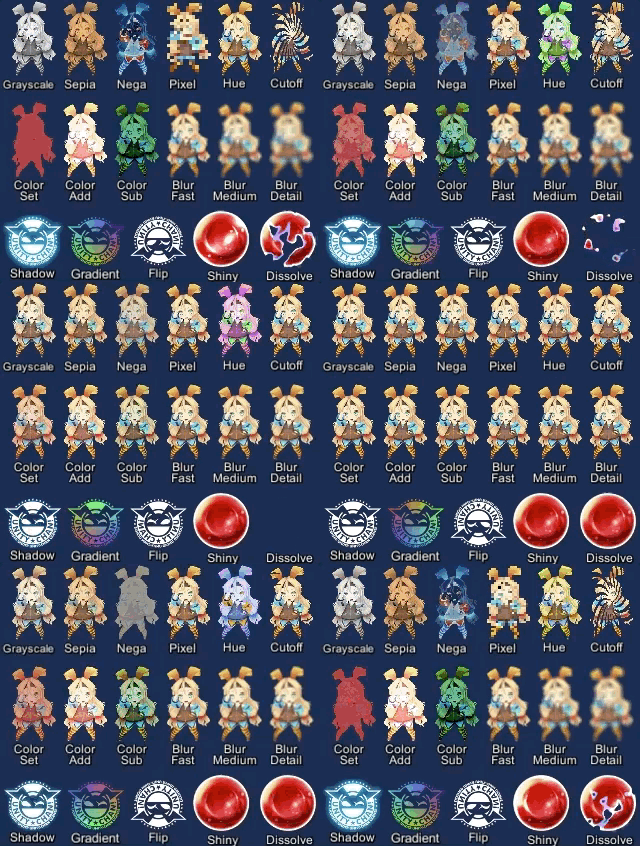
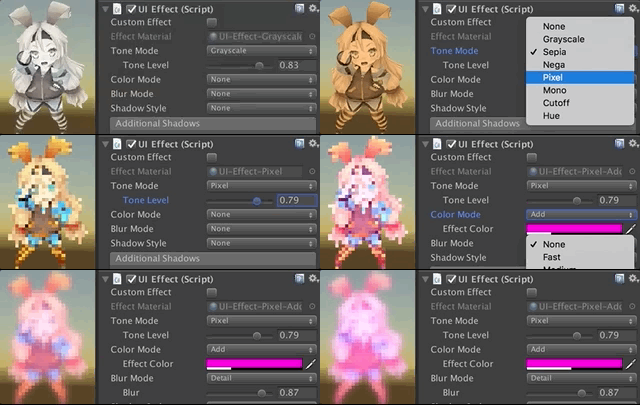
Available effects
| Component | Features | Screenshot |
|---|---|---|
| UIEffect | Combine some visual effects. Effect Mode: Grayscale, Sepia, Nega, Pixelation Color Mode: Multiply, Fill, Additive, Subtract Blur Mode: Fast, Medium, Detail Advanced Blur: Enable more beautiful blurring. |
 |
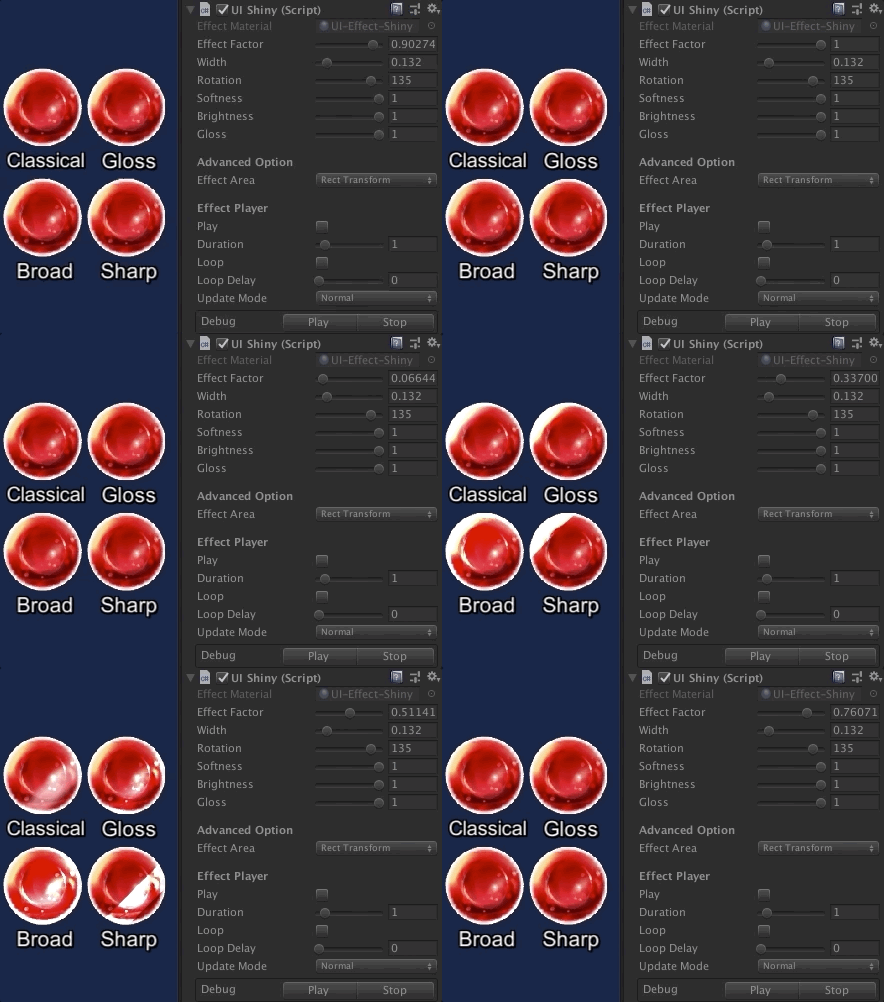
| UIShiny | Apply shining effect to a graphic. The effect does not require Mask component or normal map. Parameters: Effect factor, Width, Rotation, Softness, Brightness, Gloss |
 |
| UIDissolve | Apply dissolve effect to a graphic. Color Mode for edge: Multiply, Fill, Additive, Subtract Parameters: Effect factor, Width, Rotation, Softness, Edge color Options: Effect area, Keep effect aspect ratio |
 |
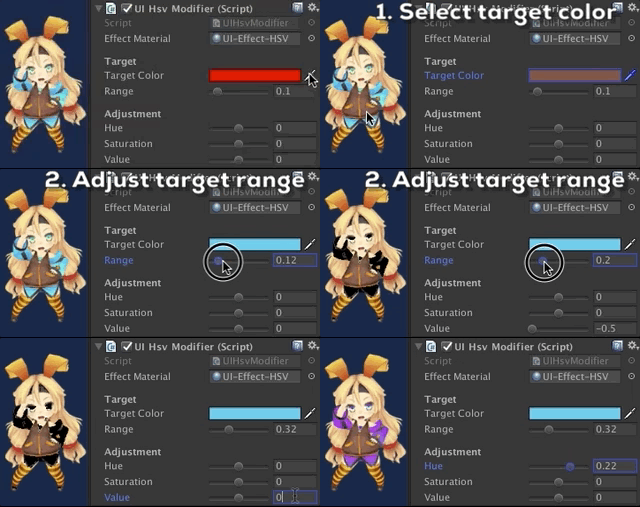
| UIHsvModifier | Modify HSV for graphic. Target: Color, Range Adjustment: Hue, Saturation, Value |
 |
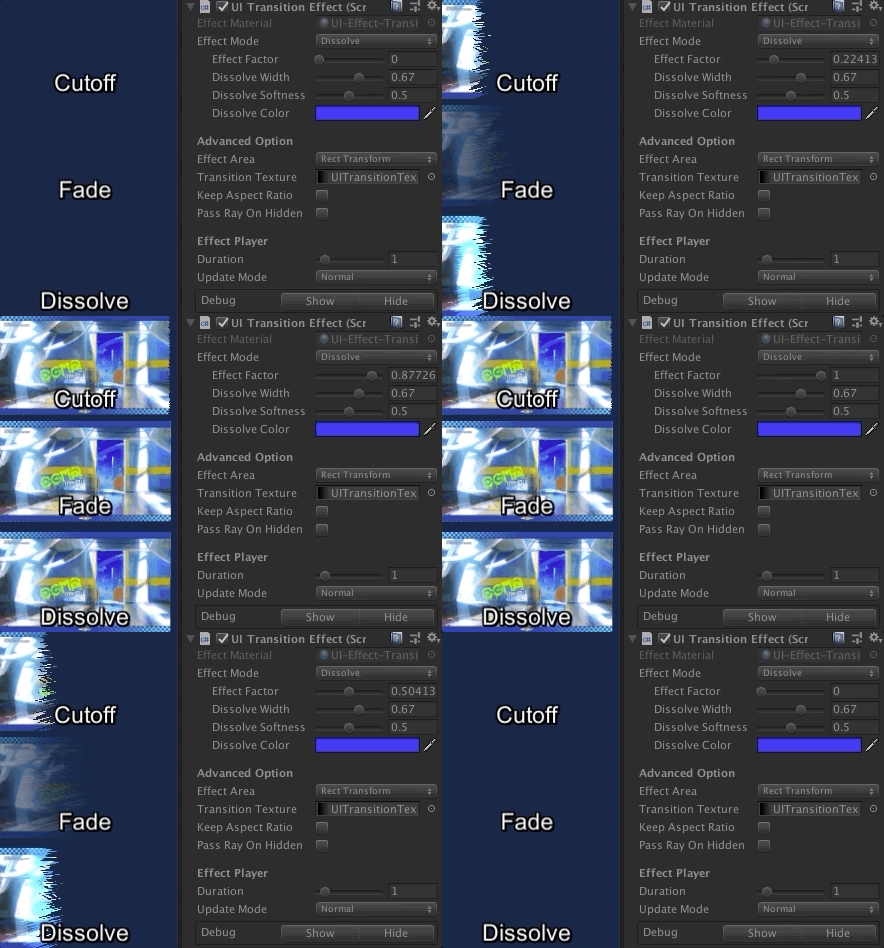
| UITransition Effect | Apply transition effect with a single channel texture. Effect Mode: Cutoff, Fade, Dissolve Options: Effect area, Keep effect aspect ratio, transition texture Pass Ray On Hidden: Disable the graphic's raycastTarget on hidden. |
 |
The following effects can be used with the above components.
| Component | Features | Screenshot |
|---|---|---|
| UIShadow | Add shadow/outline to a graphic. The performance is better than the default Shadow/Outline component. ShadowStyle: Shadow, Shadow3, Outline, Outline8 |
 |
| UIGradient | Change vertex color as gradient with angle and offset. Direction: Horizontal, Vertical, Angle, Diagonal Options: Offset, Color space |
 |
| UIFlip | Flip a graphic. Direction: Horizontal, Vertical, Both |
 |
Demo
Installation
Requirement
- Unity 2017.1 or later
- No other SDK are required
Using OpenUPM (for Unity 2018.3 or later)
This package is available on OpenUPM. You can install it via openupm-cli.
openupm add com.coffee.ui-effect
Using Git (for Unity 2018.3 or later)
Find the manifest.json file in the Packages folder of your project and edit it to look like this:
{
 "dependencies": {
 "com.coffee.ui-effect": "https://github.com/mob-sakai/UIEffect.git",
 ...
 },
}
To update the package, change suffix #{version} to the target version.
- e.g.
"com.coffee.ui-effect": "https://github.com/mob-sakai/UIEffect.git#4.0.0",
Or, use UpmGitExtension to install and update the package.
For Unity 2018.2 or earlier
- Download a source code zip file from Releases page
- Extract it
- Import it into the following directory in your Unity project
Packages(It works as an embedded package. For Unity 2018.1 or later)Assets(Legacy way. For Unity 2017.1 or later)
How to play demo
For Unity 2019.1 or later
- Open
Package Managerwindow and selectUI Particlepackage in package list - Click
Import in projectbutton

- The demo will be imported into
Assets/Samples/UI Effect/{version}/Demo; openUIEffect_Demoscene and play it
For Unity 2018.4 or earlier
- Select
Assets/Samples/UI Effect Demofrom menu

- The demo will be imported into
Assets/Samples/UI Effect/{version}/Demo; openUIEffect_Demoscene and play it
Usage
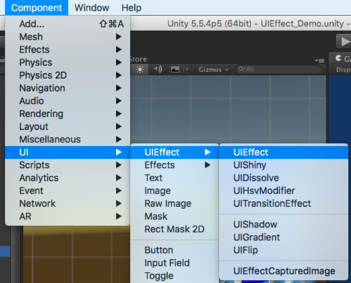
- Add any effect component to UI element (Image, RawImage, Text, etc...) from
Add Componentin inspector orComponent > UI > UIEffect > ...menu.
- Adjust the parameters of the effect as you like, in inspector.
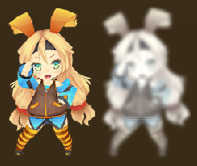
- You can add or modify effects from the script.
var uieffect = gameObject.AddComponent<UIEffect>();
uieffect.effectMode = EffectMode.Grayscale;
uieffect.effectFactor = 0.85f;
uieffect.colorMode = ColorMode.Add;
uieffect.effectColor = Color.white;
uieffect.colorFactor = 0.1f;
uieffect.blurMode = BlurMode.FastBlur;
uieffect.blurFactor = 1;
- Enjoy!
Example of using
UIEffect can easily be used in a variety of cases in the game.
| Case | Description | Screenshot |
|---|---|---|
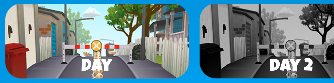
| Lock/unlock contents | Use UIEffect to apply grayscale. Indicate to user that the content is unavailable. |
 |
| Silhouette | Use UIEffect for filling color. | 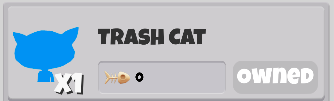 |
| Soft shadow/ Outer glow |
Use UIEffect and UIShadow to blur the shadow. |  |
| Colored shadow | Use UIEffect and UIShadow to fill shadow with color. |  |
| Blurred dynamic font | Use UIEffect to blur text. To blur dynamic font cleanly, enable Advanced Blur option. |
 |
| Text with outline & shadow | Use two UIShadows to add outline and shadow. There is less overdraw than default Outline/Shadow. |
 |
| Shining button | Use UIShiny for shining button. Indicate to user that you can press the button. |
 |
| Screen transition | Use UITransitionEffect to transition the screen with any transition texture. | 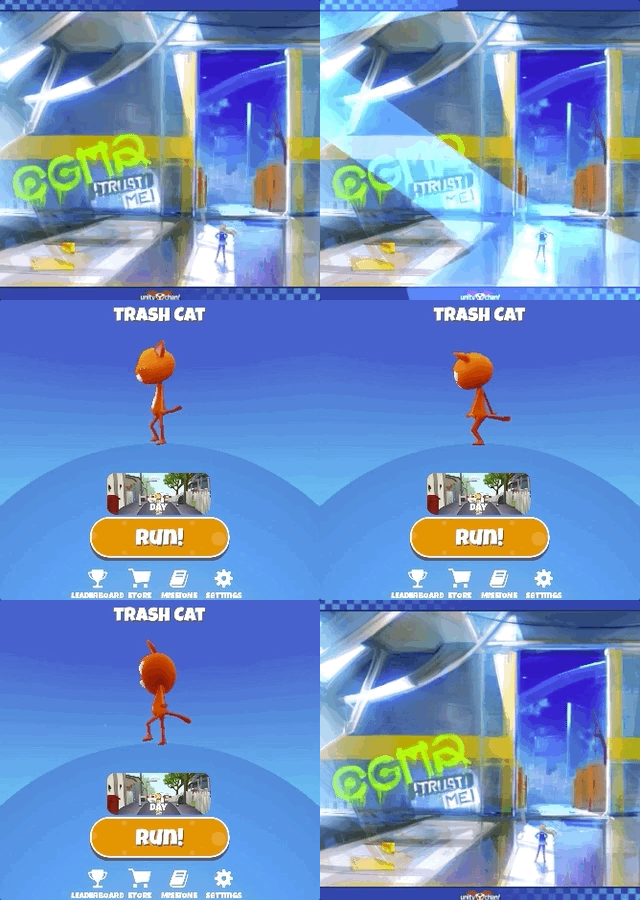 |
License
- MIT
- © UTJ/UCL
Support
This is an open-source project that I am developing in my free time. If you like it, you can support me. By supporting, you let me spend more time working on better tools that you can use for free. :)


Author
See Also
- GitHub page : https://github.com/mob-sakai/UIEffect
- Releases : https://github.com/mob-sakai/UIEffect/releases
- Issue tracker : https://github.com/mob-sakai/UIEffect/issues
- Change log : https://github.com/mob-sakai/UIEffect/blob/upm/CHANGELOG.md